SD Card Recovery on Windows: A Safe Step-by-Step Guide
When Windows asks to format or scan and repair an SD card, pause before choosing either option if you need files from it. Those prompts mean Windows cannot currently read the card normally; formatting or repair can change its contents. A recovery scan is a way to look for remaining file data, not a repair operation or a promise that every file can be restored.
Prepare Windows and the card
If the card was recently used, stop using it in the camera. Do not take more photos, format it, or run repair tools. Remove it safely when the camera is off, then connect it through a card reader. If Windows offers to format the disk, close or cancel the prompt. Avoid copying anything onto the card.
Check whether the card appears consistently in Windows and whether its reported capacity looks plausible. A reader or adapter problem can resemble a card failure, so a single careful check with another known-good reader may help if the device is stable. If the card disconnects repeatedly, becomes hot, or appears with inconsistent capacity, stop and seek professional advice when the data is important.
Start a read-only recovery scan
Open Recovatron for Windows and select the SD card as the source. The recovery workflow scans for available files; it should not format, repair, or write recovered data to the source. Windows may require elevated access for direct access to removable media or may report access denied. If so, use the application's supported elevated launch path or Windows prompt, then retry. Do not respond to an access error by initializing the card.
FAT32 and exFAT engines can use file-system records that remain on the card. If those records are missing, raw signature scanning may find recognizable file content without the original directory entry. A raw result can lack its original name and folder, and fragmented video or other split content may be partial.
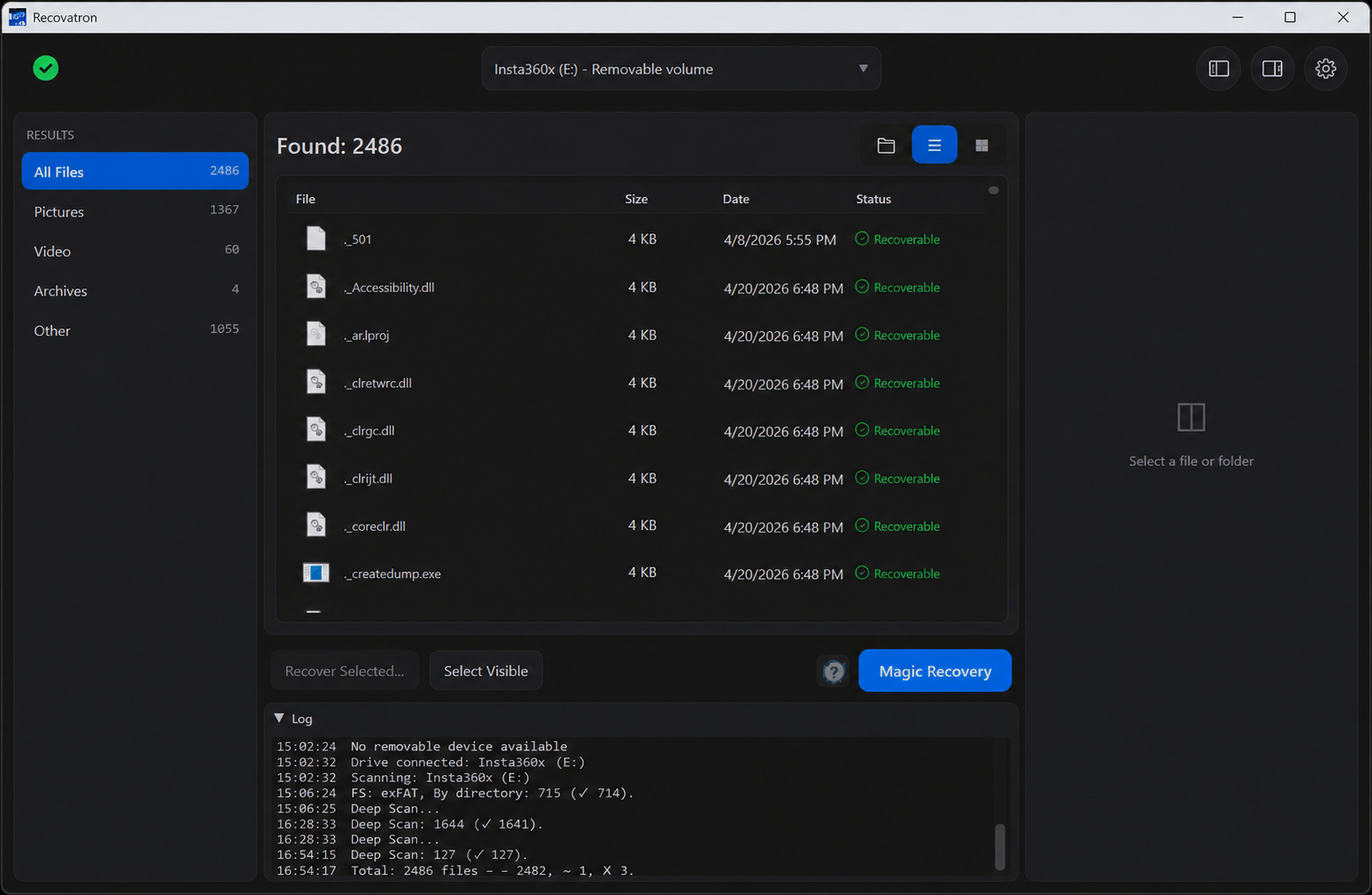
Review results and recover to another disk
Filter or review results by type and inspect names, sizes, and previews where available. Treat a result as a candidate until you open the recovered copy. A partial preview can sometimes be misleading, and a listed file may not contain all of its original data. You can select a few files manually to make a focused first recovery.
Before using Magic Recovery's automatic save, select a destination on a different physical drive. Your Windows system drive or a separate external disk is suitable if it has enough free space. Do not save to another partition on the same SD card or back to the card itself. Automatic recovery can save available files to the chosen destination; selecting the destination first helps avoid writing to the source by mistake.
After the scan
Open recovered files from the destination and check the actual content. If a wanted file is missing, avoid repeatedly changing the card or running write-based repairs; another scan cannot restore data that is no longer present. Preserve the card in its current condition while you decide what to try next.
If you are using a Mac instead, read recovering deleted SD card photos. For camera video, see camera video recovery; for general precautions, read safe recovery after accidental deletion. You can get the Windows app from download or contact support.
Frequently asked questions
Should I click Format disk in Windows?
No, not if you want to recover its files. Cancel the prompt and scan the card without formatting or repairing it.
Why does Windows say access denied?
Direct access may need elevated permissions. Follow the Windows access prompt or supported app instructions, then retry without writing to the card.
Can Windows recovery preserve every file name?
Names and folders depend on surviving file-system metadata. Raw signature results may not have either, and fragmented files may be incomplete.
Scan your USB drive or memory card
Try Recovatron on Windows or macOS. Choose a separate drive for recovered copies and check a few important files first.
Download RecovatronRelated recovery guides
How to Recover Deleted Files from a USB Drive
What to do after deleting files from a USB flash drive, how to scan it safely, and where to save recovered files.
Read guide →How to Recover Deleted Photos from an SD Card
A careful workflow for deleted camera photos: stop using the card, scan it, inspect matches, and save elsewhere.
Read guide →SD Card Recovery on Windows: A Safe Step-by-Step Guide
How to scan an SD card from Windows without formatting or repairing the source, and how to save results safely.
Read guide →How to Recover Deleted or Missing Camera Videos
A cautious guide to scanning camera cards for deleted video while protecting source footage from further writes.
Read guide →Safe Recovery After Accidental File Deletion
The first steps to take after deleting files, plus practical advice for scanning and saving without overwriting the source.
Read guide →