How to Recover Deleted Files from a USB Drive
If you deleted a document, project folder, or other file from a USB drive, stop using the drive first. Deletion usually removes a file's directory entry while leaving some of its contents on the device until new data replaces them. The more the drive is used, the greater the chance that old content will be overwritten.
Stop writes before you scan
Eject the USB drive when convenient and avoid copying new files onto it. Do not format it, run a repair utility, or accept an operating-system prompt to initialize it. Those actions can change the source and make recovery harder. If the operating system still opens the drive, that only means it can read enough of its file system to mount it; it does not guarantee that deleted data is intact.
When you reconnect the device, use it only for the scan. A recovery scan reads available information from the drive and looks for deleted directory records or recognizable file content. It cannot recreate bytes that have already been overwritten, and a scan result is not a guarantee that every listed item will open correctly.
Choose a scan and review the results
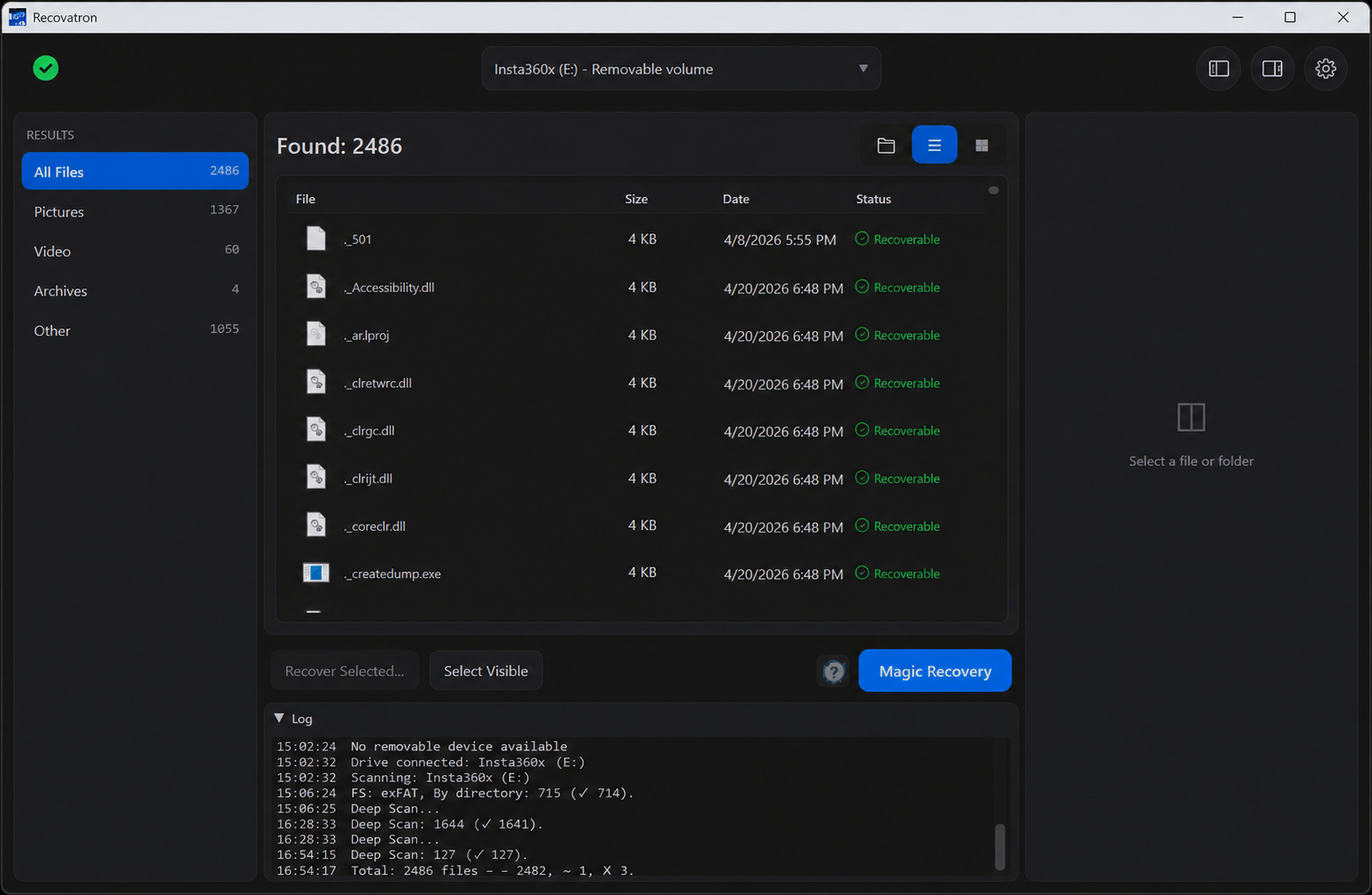
Recovatron can scan removable media on Windows and macOS. Connect the USB drive, select it as the source, and start a scan. Depending on the file system and the remaining directory information, results may retain original names and folder paths, or may appear as files identified by type. FAT32 and exFAT recovery engines can use file-system information when it remains available. Raw signature scanning can locate recognizable content without a usable directory entry, but the original name and location may be missing.
Review likely matches before saving. Use file type, displayed name, size, and any available preview to distinguish useful results from incomplete or unrelated data. Recovering a small selection first can help you check whether the files open as expected. No file system can promise a complete result in every deletion case.
Save to another physical drive
Decide on a destination before recovery begins. It should be a different physical drive from the USB source, such as your computer's internal disk or another external disk. A separate folder or another partition on the same physical device is not the same protection: writing recovered files to the source device can overwrite other deleted content you still hope to recover.
Magic Recovery can automatically save recoverable results to a destination you choose. Select that different physical drive before starting automatic recovery. If you want more control, select a few files manually and save those to the safe destination. After saving, open important files from the destination and check their contents. Keep the USB source unchanged until you have confirmed what you need.
When the drive is not behaving normally
If the USB device repeatedly disconnects, becomes unusually hot, makes an unexpected sound, or is not consistently detected, stop repeated attempts. Software cannot fix failing hardware, and each connection may add stress. If the files are irreplaceable, consider a reputable data-recovery professional before further use. If the device is stable but access is denied, Windows may require elevated access; macOS may require Full Disk Access. Follow the operating system's access prompt and retry without changing or repairing the source.
For setup help, visit support. You can also read safe recovery after accidental deletion or recovering an SD card on Windows. See supported downloads at download.
Frequently asked questions
Can I recover a file after emptying the Recycle Bin?
Possibly. Stop writing to the USB drive and scan it as soon as practical. Recovery depends on whether the file's data remains and whether the device has reused those storage areas.
Should I save recovered files back to the USB drive?
No. Choose a different physical drive before recovery to reduce the chance of overwriting other recoverable data.
Will the original folder structure return?
It may when file-system records are still available. Raw signature results can lack original names and folders, and fragmented files may be incomplete.
Scan your USB drive or memory card
Try Recovatron on Windows or macOS. Choose a separate drive for recovered copies and check a few important files first.
Download RecovatronRelated recovery guides
How to Recover Deleted Files from a USB Drive
What to do after deleting files from a USB flash drive, how to scan it safely, and where to save recovered files.
Read guide →How to Recover Deleted Photos from an SD Card
A careful workflow for deleted camera photos: stop using the card, scan it, inspect matches, and save elsewhere.
Read guide →SD Card Recovery on Windows: A Safe Step-by-Step Guide
How to scan an SD card from Windows without formatting or repairing the source, and how to save results safely.
Read guide →How to Recover Deleted or Missing Camera Videos
A cautious guide to scanning camera cards for deleted video while protecting source footage from further writes.
Read guide →Safe Recovery After Accidental File Deletion
The first steps to take after deleting files, plus practical advice for scanning and saving without overwriting the source.
Read guide →